
User guide / 07
Make the app feel right for you
In this guide
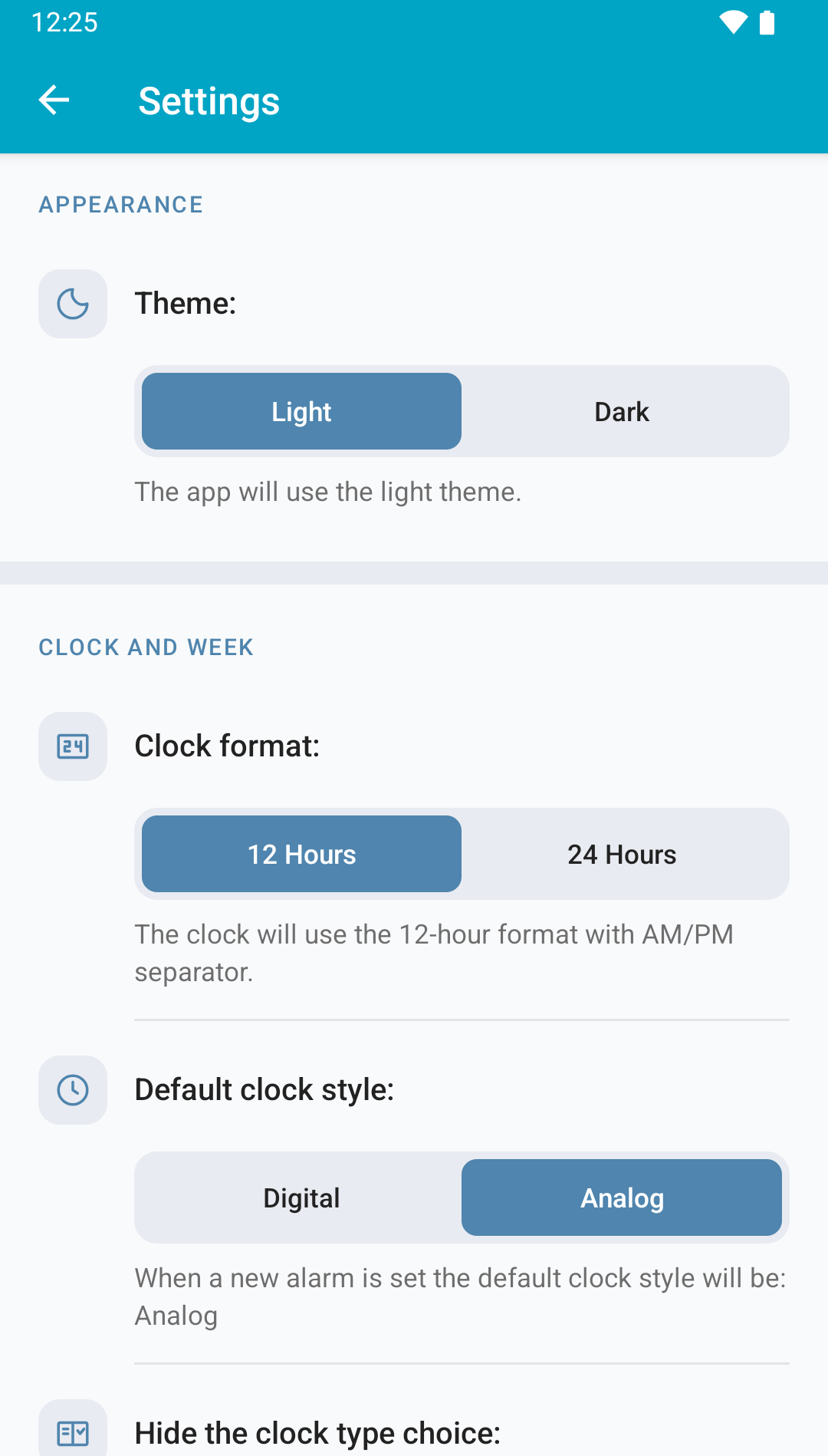
Open the menu on the alarm list and choose Settings. You can change the theme, time format, clock picker, first day of the week and light sensor sensitivity.
 Enlarge screenshot
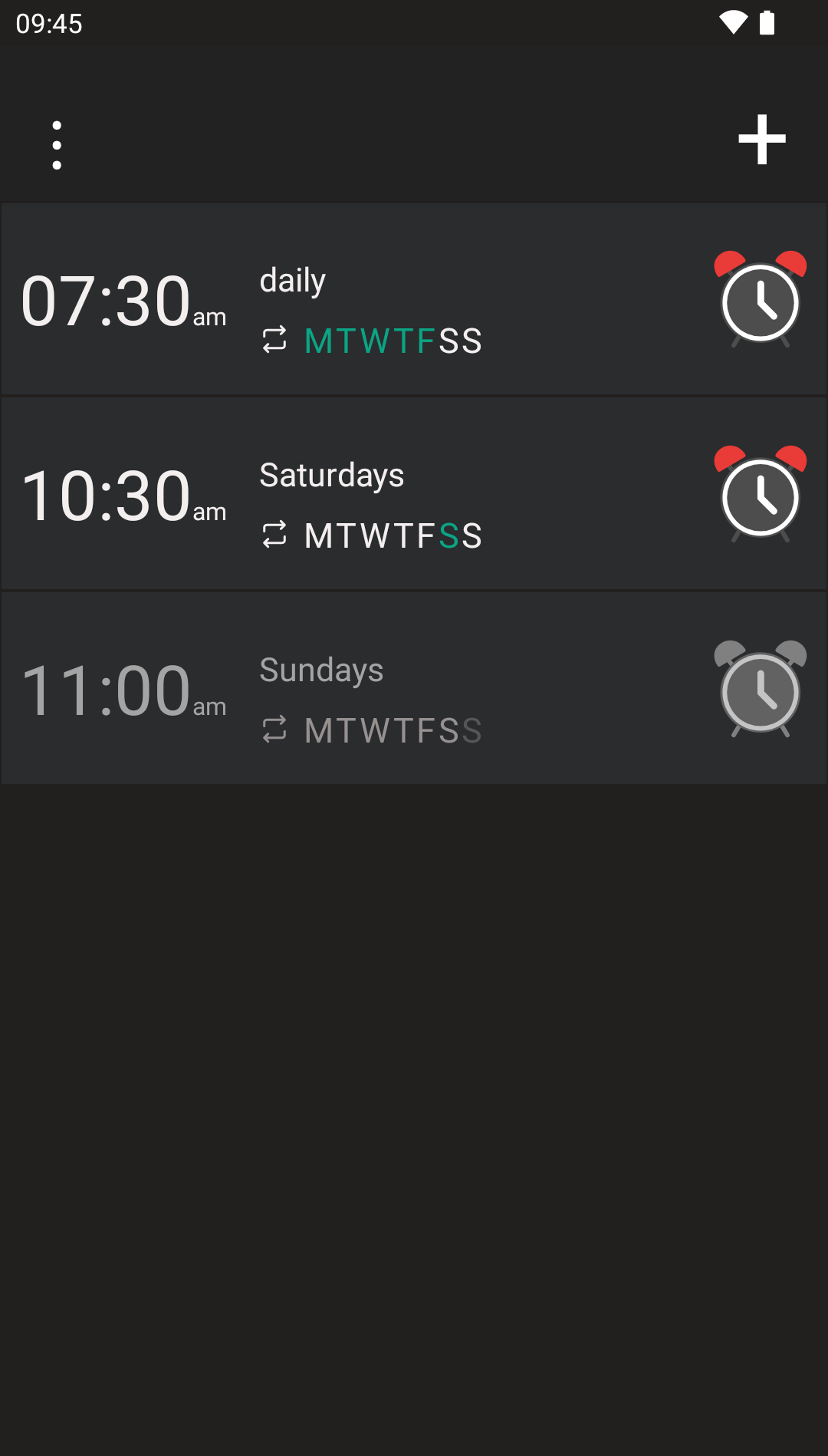
Light or dark theme#
Choose Light or Dark. Your alarms and times stay the same; the colours change so you can read the screen comfortably.
 Enlarge screenshot
12-hour or 24-hour format#
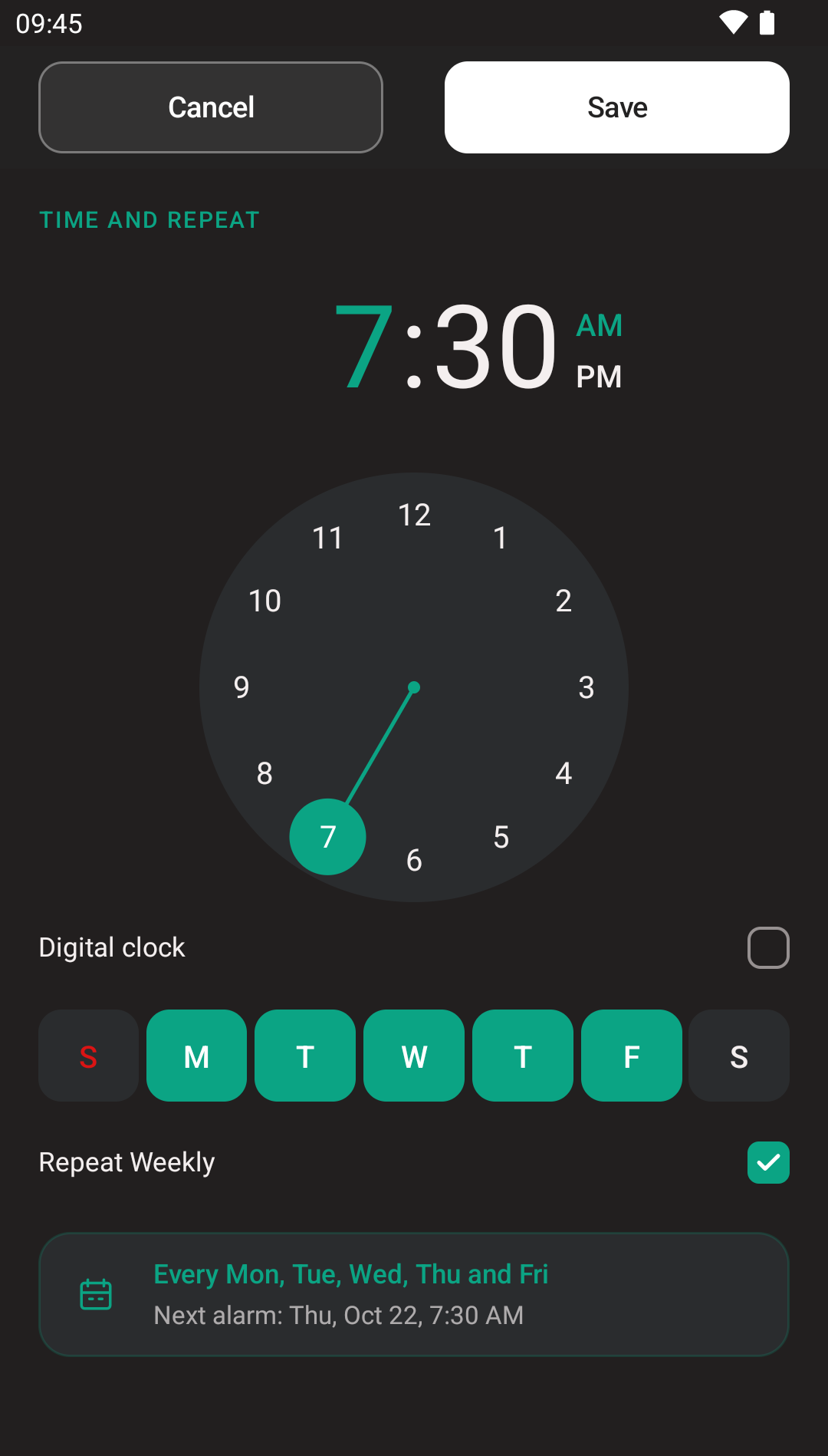
Under Clock format, choose 12 Hours or 24 Hours. In 12-hour format you will see am / pm; in 24-hour format, 19:30 means half past seven in the evening.
This changes how times are displayed and selected. Check am / pm when setting an alarm in 12-hour format.
Analog or digital picker#
Under Default clock style, choose the picker you prefer for new alarms. You can also show or hide the clock type choice inside the editor.
Cannot find Digital clock in an alarm? Check that the clock type choice is set to show. When it is hidden, the default style is used.
 Enlarge screenshot
First day of the week#
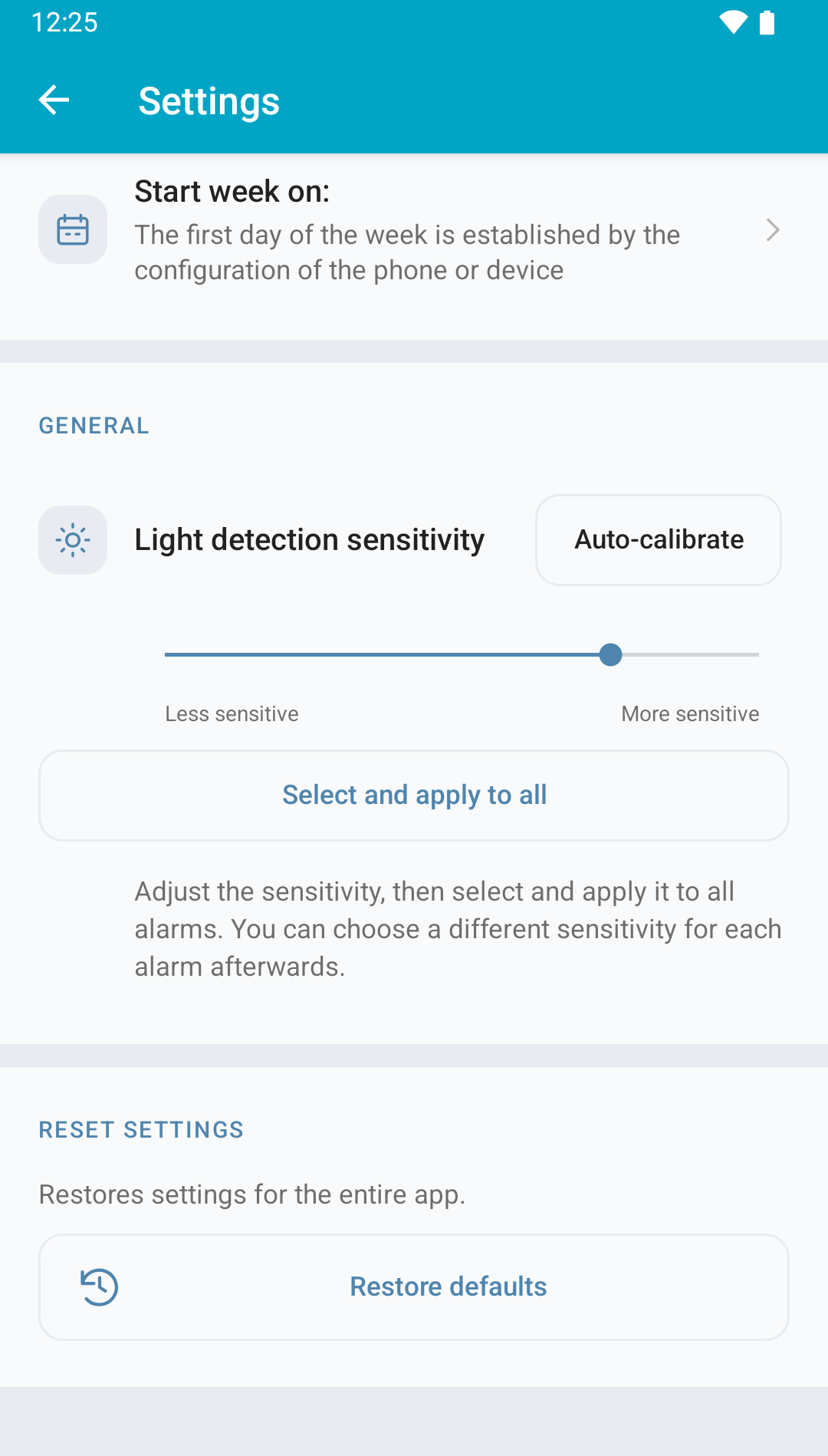
Under Start week on, choose a day or follow the phone’s configuration. This changes the order of days on screen, without changing a Monday or Friday alarm’s schedule.
Language#
The app is translated into English, Spanish and other languages. If your Android version offers App language on the app’s settings page, you can choose it there. Otherwise, check your device language.
This manual uses screenshots of the app in English. The Español link changes both the guide text and its screenshots.
Light detection sensitivity#
In Settings, scroll to Light detection sensitivity, under General. You can choose the global sensitivity or use Auto-calibrate to adapt it to your room lighting. This section only appears when your phone has a compatible light sensor.
 Enlarge screenshot
- Less sensitive, to the left: a larger increase in light is needed to react.
- More sensitive, to the right: it can react to a smaller increase in light.
Moving the slider shows Not applied. To save that selection using the current scale, tap Select and apply to all and accept the confirmation. Moving the slider alone does not save the change.
The selection applies to all saved alarms and new ones, including disabled alarms and those with light control turned off. Their times, enabled state and chosen light action are kept. This does not turn light control on: enable it in each alarm and choose whether it stops or snoozes the alarm, as explained in Light, shake and buttons.
Auto-calibrate the light sensor#
Auto-calibration compares the lighting with the room light off and on to prepare a sensitivity scale for your room and a recommended selection.
- Place your phone where it will be when the alarm rings, with its light sensor uncovered. Keep it in the same position for both measurements.
- Tap Auto-calibrate.
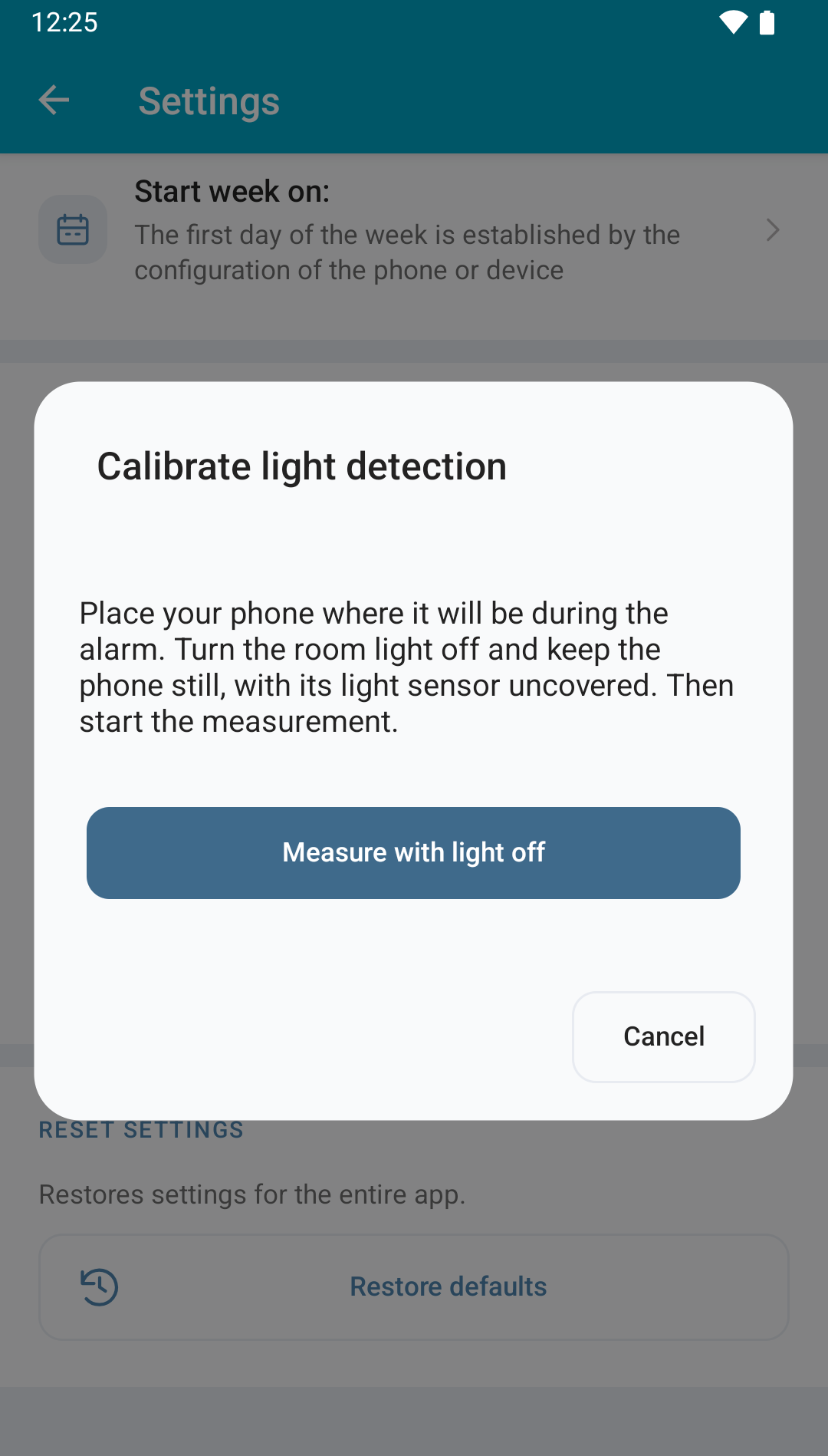
- Turn the room light off and tap Measure with light off. Keep the phone still while Measuring… is shown and wait until the app asks you to turn the light on.
 Enlarge screenshot
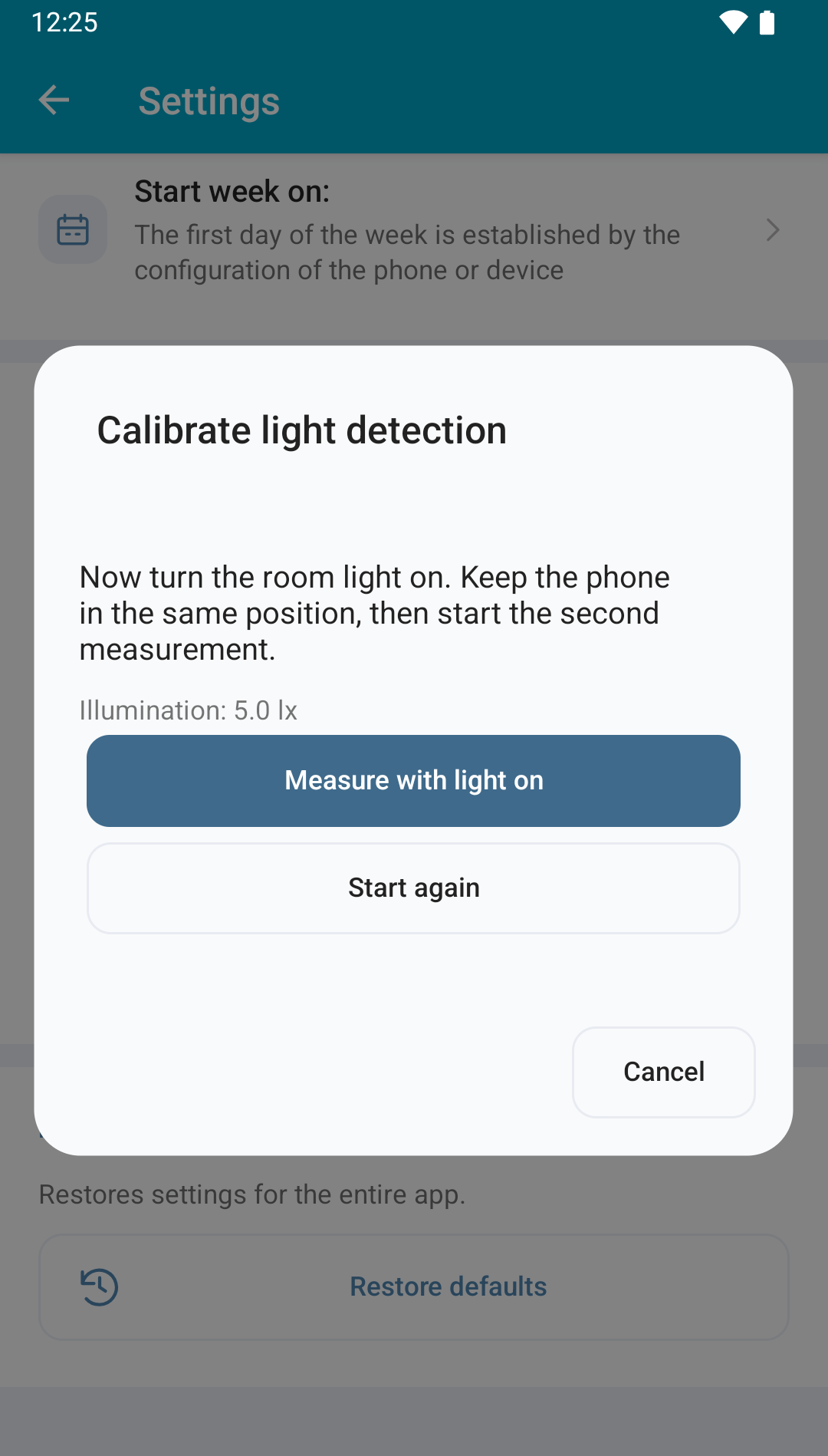
- Switch on the lamp you will use to stop or snooze the alarm. Without moving the phone, tap Measure with light on and wait for it to finish.
 Enlarge screenshot
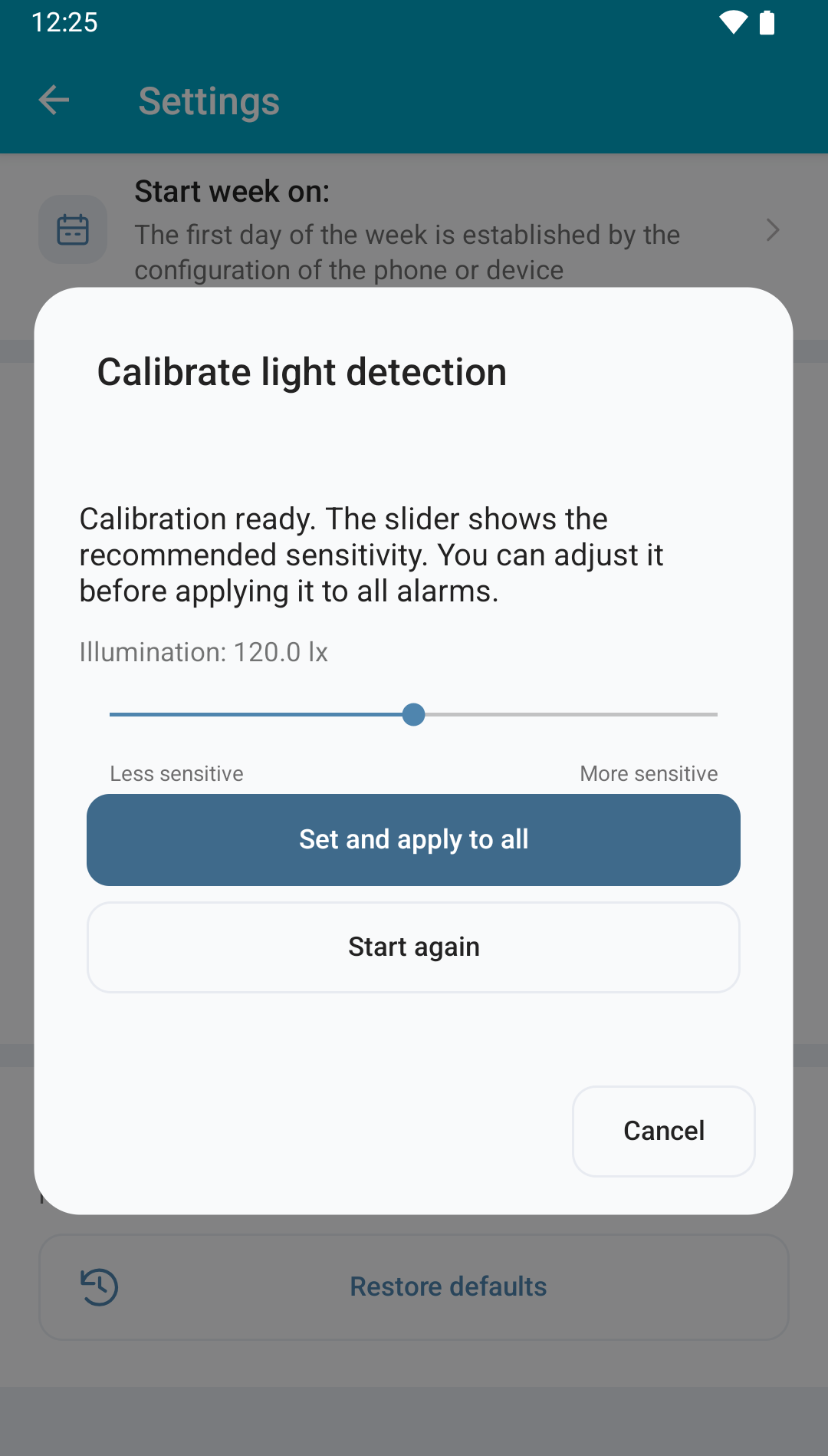
- When Calibration ready appears, the slider shows the recommended sensitivity. You can move it towards Less sensitive or More sensitive before continuing. Start again repeats both measurements.
- Tap Set and apply to all to review the confirmation.
 Enlarge screenshot
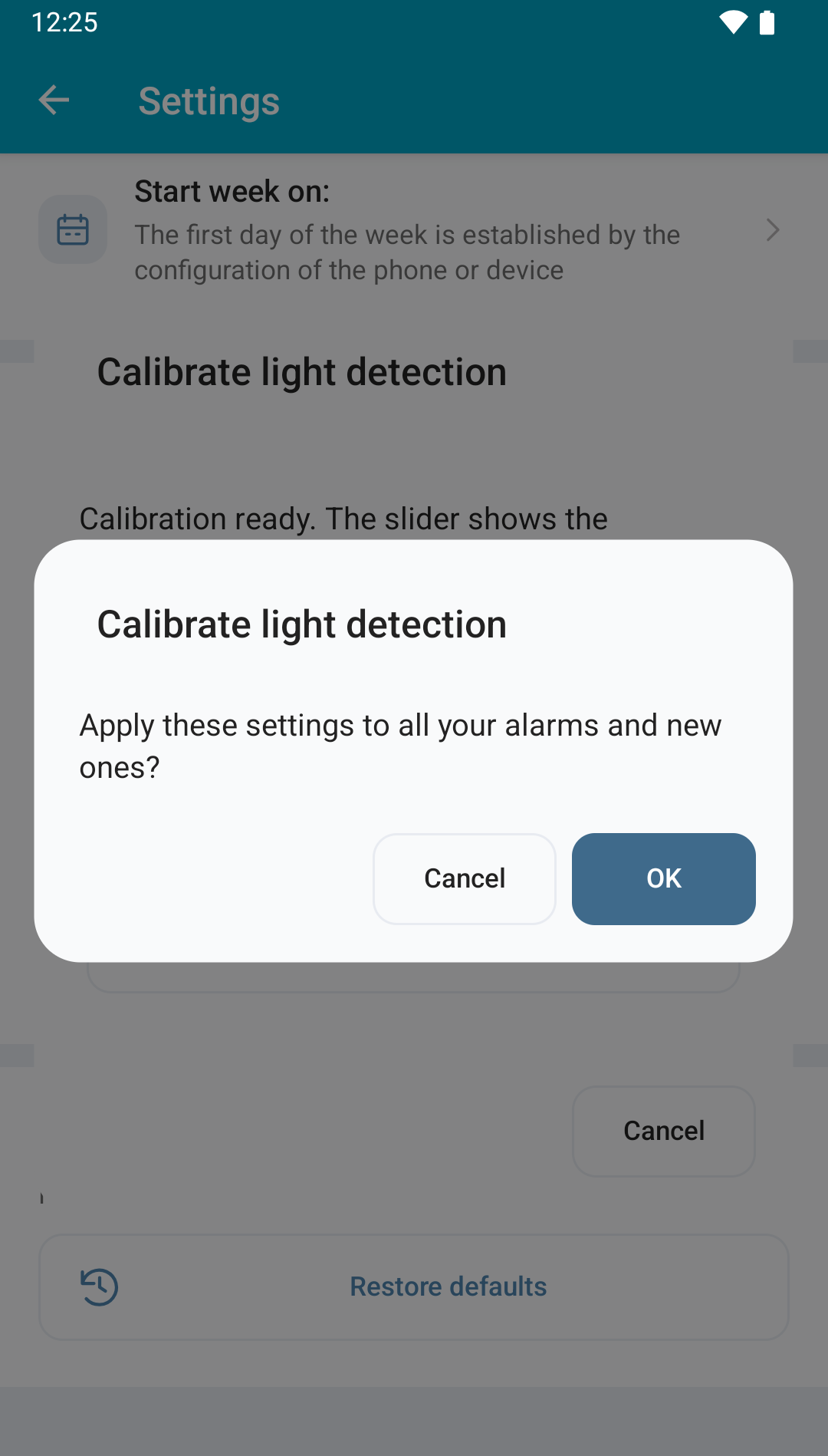
- Accept the confirmation to save the new scale and selected sensitivity for all alarms and as the initial setting for new ones.
 Enlarge screenshot
Cancel closes the calibration dialog without applying the proposal. If readings are unstable or the light increase is too small, the app keeps your previous settings and lets you repeat the measurement. If leaving the screen interrupts it, start again; if the sensor cannot provide valid readings, check the message before retrying.
After applying, test an alarm a few minutes ahead with the phone in the same position: it should keep ringing before you switch on the lamp and perform the chosen action when you turn it on. If you change rooms, lamps or phone position, repeat calibration when needed.
You can choose another sensitivity inside an alarm’s editor and save it for that alarm. Applying a global setting later also replaces these individual selections.
Restore defaults#
At the bottom of settings, Restore defaults asks you to confirm before returning to the app’s initial preferences, including the original light sensitivity scale. It also applies the default sensitivity to all alarms. Afterwards, review your settings and check your alarms before relying on them.