
User guide / 01
Set your first alarm
In this guide
Tap +, choose a time and days, then tap Save. Saving switches the alarm on. Before you leave, check when it is due to ring.
1. Open a new alarm#
In the alarm list, tap + in the top right corner. To change an existing alarm, tap its time or name.
 Enlarge screenshot
2. Choose the time#
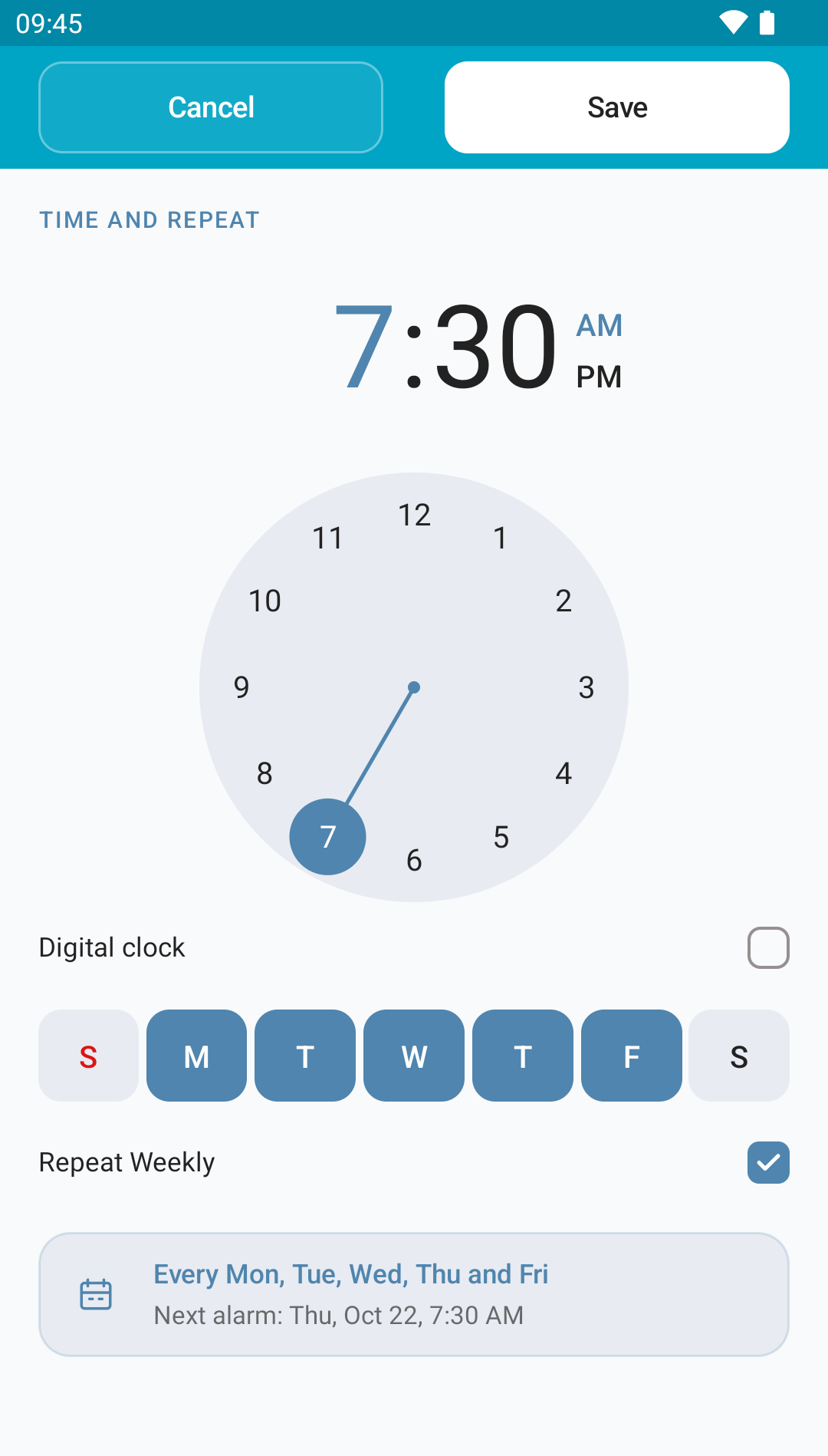
With the analog clock, choose the hour first, then the minutes. Tap a number or move the hand. Tap the hour or minutes at the top to change either one again.
Prefer a different picker? Tick Digital clock. If you use the 12-hour format, check am / pm too.
 Enlarge screenshot
3. Decide when it repeats#
- For a routine: select the days you want and turn on Repeat Weekly.
- For a single alarm: turn off Repeat Weekly and leave all days unselected. The app chooses the next time that hour comes around: today or tomorrow.
- For several days without a weekly repeat: select those days and leave the weekly repeat off.
The Next alarm card helps you check the date. See Days and repeats for more examples.
4. Give it a name and sound#
Scroll down the editor. Under Name, enter something easy to recognise, such as “Work”. Choose an Alarm Tone, then check Alarm type and Volume.
You can leave light and shake controls off for your first test and try them later. Get comfortable with the basics first.
5. Save and check#
Tap Save at the top. Saving enables the alarm, including when you edit one that was switched off. Check its time, days and clock icon in the list.
If Android asks for access, follow the prompt and return to the app. Permissions and battery explains what each setting is for.