
User guide / 02
Choose days and repeats
In this guide
The days choose when your alarm rings. Repeat Weekly decides whether those days are scheduled again every week. These are two separate choices.
An alarm for today or tomorrow#
- Create an alarm and choose a time.
- Clear all the days and turn off Repeat Weekly.
- Check Next alarm: if the time has not passed yet, it will be today; otherwise, it will be tomorrow.
- Tap Save.
When you save, the app selects the day for that next time. Once that single date has been used, the alarm switches off.
Every weekday, every week#
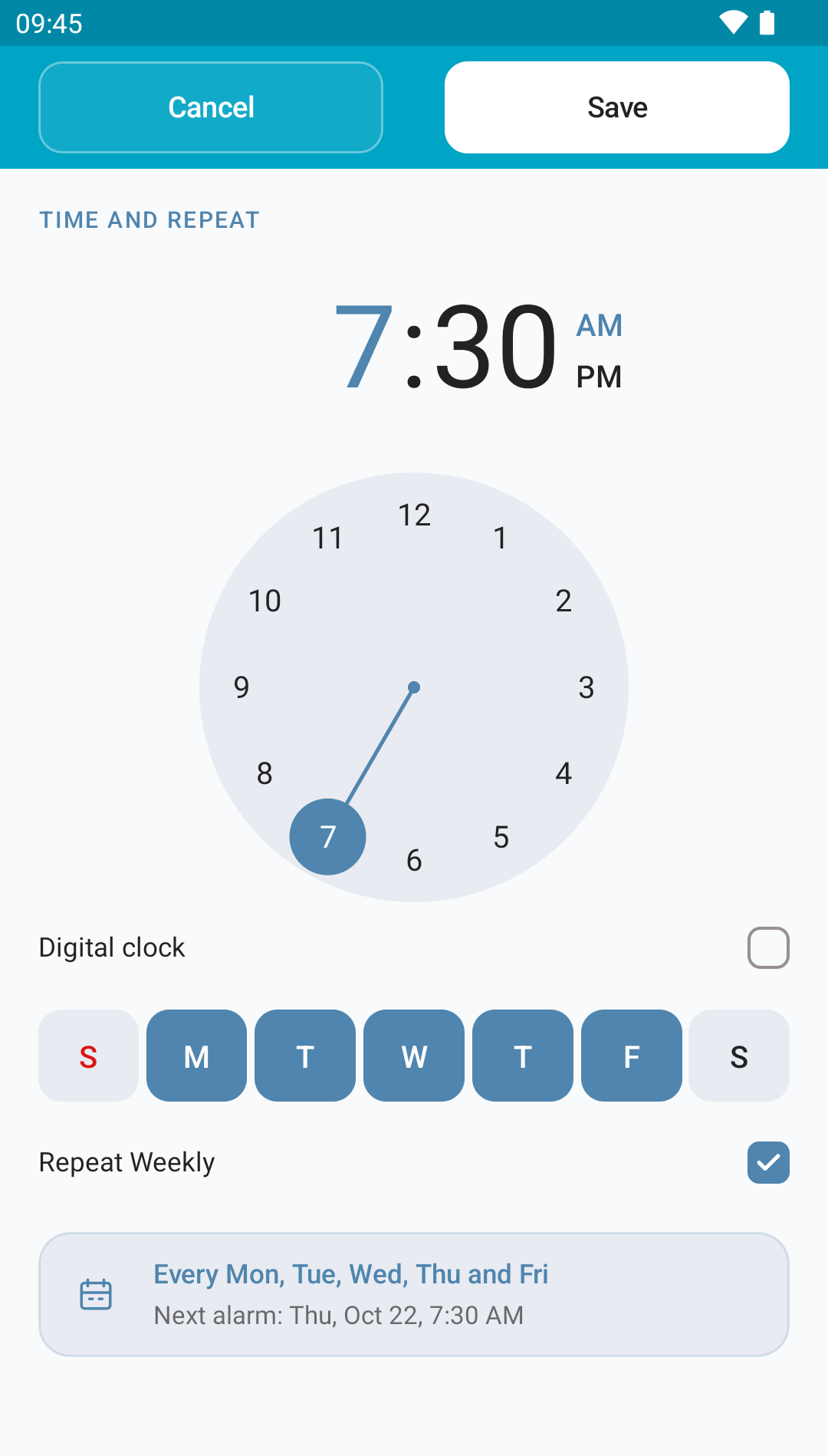
Select Monday, Tuesday, Wednesday, Thursday and Friday, and turn on Repeat Weekly. Leave Saturday and Sunday unselected. Save your changes.
 Enlarge screenshot
Several days, just this once#
Select the days you need and turn the weekly repeat off. The alarm is set for the next occurrence of each chosen day within the next seven days. As each date is used, its day is removed; when none remain, the alarm switches off.
For example, Tuesday and Thursday at 8:00 means the next available Tuesday and Thursday. It will not keep ringing on those days in later weeks.
A selected day whose time has passed#
If you explicitly select a day and its time has already passed, the app uses its next available date. For example, choosing Monday at 7:00 on Monday afternoon schedules the following Monday. Always check Next alarm before saving.
Digital clock and time format#
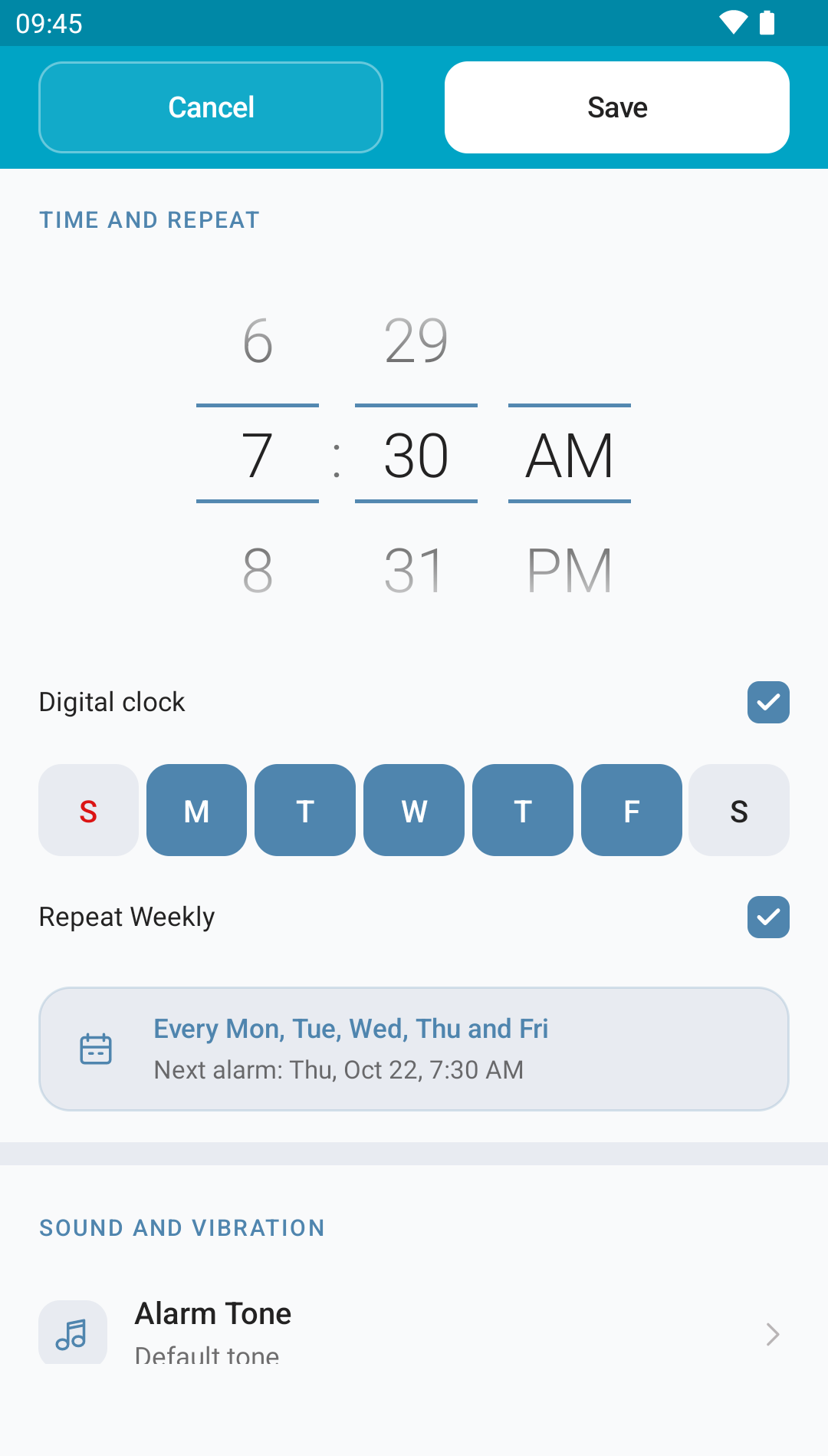
Digital clock changes how you pick the time, without changing the days or repeat. Choose the 12 / 24-hour format in the app settings. In 12-hour format, 7:30 am is in the morning and 7:30 pm is in the evening.
 Enlarge screenshot
You can also change the first day of the week under Appearance and settings. Changing the order of days on screen does not change what each day means.